Thursday, 26 December 2013

Awesome trick to boost your blog traffic

Blog Traffic or page visits is a very essential thing to all  race to bloggers in the blogging world, Without traffic our blogs do not get much exposure, without exposure your blog does not get popular at all, and we bloggers often get disappointed   when the traffic stats state that  your daily visits is 69-80. Well guys in this posts i am going to tell you the awesome way(top secret)to earn web traffic of minimum 500 per day! Well before, guys even my blog was getting only 80-100 page visits per day,but my friend,a pro blogger suggested me this secret reciepe to increase traffic 
Till now you might have heard people telling to use seo tools. social broadcasting,etc but this post describes an easy and tricky way to boost your blog's traffic within minutes


Boss over posts

write your article according to readers, think! Think!  as a reader what would you wish to search on google,what is the most famous thing what is cool, write the posts which no one has writeen stop copying start writing,you could drive effective and unstoppable traffic to your blog..

take a sneek in Various Forums

Do you know one of my friends blog gets massive traffic from forums like digitalpoint. you might just have visited various forums,and registered for your own purpose whether it can be getting an answer to a question
For suggestion i give you to sign up in my friend’s forum-Legeeks and gizmolord where you have different sections for you  
Bloggers in the forums leave an impression of their blog/site with their post. In some forums you are also allowed to set up your own adsense add with the post you  might have pinned. Also you can pu up posters,host giveaways.etc to drive traffic

 host giveways and encourage people

You know more visitors get attracted by seeing free things than on seeing your posts, so whether it is cheap or costly Host a giveaway on your blog and encourage everybody And serving more than billions a day. So think how much visitors you can drive 

 comment comment comment until you die!....

Did you know about commentluv and other things which link up your blog’s post with your comment, i do comment a lot and get traffic from various sites do you ?, give it a try, comment in top popular sites.. after you publish an article make sure to comment on those popular blogs. Just not commenting. Another thing is there. Guys make sure that you are the best and first blogger to comment on that post . Also remember to comment a really valuable comment so that others too check what you have written. If you are the first to comment then probably you would be the first and the most close to the post. And last thing to remember is to remember is to keep an link back to your site’s latest post.

Tuts! Tuts! Tuts! Tutorials to the way

Whether its about tech,blogging or something intresting,You just have to create give tutorials on your blog whether its a good youtube video or a complicated whiteboard animation it must reach people. It would hardly take 1 Hour for you to create an informative and stout tutorial. Video contents serve one of the most important strategy to drive traffic to your blog.Nowadays people search for hacks, cracks, patches, mods rather than boring things while making the tutorial in video  in the description of the tutorial make sure to highlight your blog in it so that people see your blog first then the tutorial.

Conclusion

these methods are used by me too! to drive massive traffic onto your blog.Make sure to try these strategies.and if any suggestions and questions in your mind just keep it on comments good luck!!

Wednesday, 25 December 2013

how to get site links on google search


Sitelinks ,what are they
The small subheadings  that are shown below a website’s main URL in Google's search results are called SitelinksThese provide shortcuts to the most important pages of your site; they help potential visitors easily find what they need and navigate your site in a timely manner. Sitelinks not only provide easy nav  into your site’s structure and bring information and options up front to users, but they also expand your seo  and click-through rates. 
setting site links up
first you need a webmasters account on google,if you have then log in, setting up a Google Analytics and Google Adwords is a good idea too. Even if you use thirdparty seo services they are good  for the project too
You Get Sitelinks!
First you need a Sitemap (.XML). If you don’t have one, you can create a sitemap manually or by using third-party tools. A simple solution is to use this XML generator:http://www.xml-sitemaps.com/.
As an example, here's a portion of sitemap: 
<?xml version="1.0" encoding="UTF-8"?>
<urlset
      xmlns="http://www.sitemaps.org/schemas/sitemap/0.9"
      xmlns:xsi="http://www.w3.org/2001/XMLSchema-instance"
      xsi:schemaLocation="http://www.sitemaps.org/schemas/sitemap/0.9
            http://www.sitemaps.org/schemas/sitemap/0.9/sitemap.xsd">
<url>
  <loc>http://wwwtechknowblogging.com<loc>
  <changefreq>weekly</changefreq>
  <priority>1.00</priority>
</url>
<url>
  <loc>http://www.techknowblogging.com/blog/</loc>
  <changefreq>weekly</changefreq>
  <priority>0.80</priority>
</url>
After completing your sitemap and downloading from XML-Sitemaps.com, upload the sitemap.xml file to your site. By now, you should be able to typehttp://www.yourwebsite.com/sitemap.xml in your browser and see the sitemap you just created . Now, follow these easy, Google instructions for submitting your sitemap into Webmaster Tools, go to Webmaster Tools and click Optimization  Sitemaps. , click "Add/Test Sitemap," and enter the sitemap URLif you are a blogger user Use http://YOURBLOGNAME.com/atom.xml?redirect=false&start-index=1&max-results=500 as your blogger sitemap

Almost done...

You must know: As of now, Google automatically generates your sitelinks using an algorithm or bot – you do not have direct control over what links appear below your main URL. However, you can demote(remove) sitelinks in your Webmaster Tools account if you don’t feel a specific URL is a good "shortcut" candidate. For demoting a link, go to Webmaster Tools > Configuration > Sitelinks and enter the URL in the  text box.

you'll need traffic and seo

But sad news is there is  no guarantee that your sitemap will generate search engine sitelinks. You need to make sure that your "site's internal links are good” Manybloggers suggest that sitelinks are generated from a combination of website authority (i.e. inbound links), traffic, and branded keywords. At the very least, make sure that your site’s link structure is clean and sensible. Also, take time to mark up the contents of your pages to help Google decide which internal links to showcase.ping your links and posts improve seo and get your site linked

last words....

Sitelinks are indeed important and viral for a blogger its your turn now to make it up till you get your important sitelinks under your site in google organic search!


Monday, 23 December 2013

How to add distributions to Berryboot manually

When you’re using the included BerryBoot images,as I described in my last post such as Raspbian and Puppy Linux, installation is a easy job.In order to import a Linux distribution into the BerryBoot, you need to optimize that distribution for SquashFS. first get an image of that distribution.in three ways you can get it done:
  •  First,the easiest way to do is to get optimized images from the BerryBoot that has not been officially added to the installer yet you can open here.SquashFS optimization is not necessary here.
  • Second, in Raspberry Pi optimized images that are available for general download but are not optimized for BerryBoot yet, you can simply get the image.
  • third, in the case of distributions such as Raspbmc that requires an use of installer tool to download everything directly to the RPi and go from there, you need to create an image of the SD card that you installed it into
  • In addition to the .IMG file you will need the access to a Linux machine( like maybe Linux powered desktop,  Linux Live CDon a computer, or even the copy of Rasbian on your RPi),  to use the SquashFS tool. There simply hasn’t been a consistent port yet, so we’re going to keep things on and simple by using SquashFS on it’s indigenous platform.
  • If the distribution doesn’t have SquashFS installed already (like Raspbian doesn’t be with it before), therefore you must enter the following command at the terminal to get a copy of it
sudo apt-get install squashfs-tools


  • To convert the the .IMG, plug in an SD card or USB device in which the file exists, into your Linux machine. I am going to consign to the image file as NewBerryBoot.img in the commands. Open the terminal and run the following command on the .IMG:
sudo kpartx -av NewBerryBoot.img


  • The kpartx command creates the device maps from the partition tables,  with the –av switch, it will add the mappings and operate at length so that we can read the output. The output should look something like:

  •  add map loop0p1 (252:5): 0 117187 linear /dev/loop0 1
    add map loop0p2 (252:6): 0 3493888 linear /dev/loop0 118786(or 4)
    • The 2nd  larger partition, loop0p2, is the one we are in. In your image, the loop will maybe different (i.e. loop3p2), so copy the name for the next commands. Then Enter the following commands:
    sudo mount /dev/mapper/loop0p2 /mnt
    sudo sed -i ‘s/^\/dev\/mmcblk/#\0/g’ /mnt/etc/fstab
    sudo mksquashfs /mnt converted_image_for_berryboot.img -comp lzo -e lib/modules
    sudo umount /mnt
    sudo kpartx -d NewBerryBoot.img
    • These commands makes the partition, and edits the file systems table in the original partition,then optimizes the image with SquashFS (except the lib/modules which are shared in the distributions on BerryBoot), and then unmounts and deletes the partition mappings.
    • Plug in the external media that holds the .IMG file into your Raspberry Pi unit or attached USB hub. Boot into your Raspberry Pi with the original BerryBoot SD card. At the boot selection menu, press Edit menu to open the BerryBoot menu editor.
    • To add your .IMG file, click and hold the Add OS button as shown below
    • Select ‘Copy OS’ from USB stick, and you’ll see a file selection dialog box
    • After selecting your .IMG file and Opening it, wait for a moment as the .IMG is unpacked and installed. After that, you’ll see the BerryBoot menu editor with a new additional


    Poof done!!, here are the ways you can download or create an .IMG file to load into BerryBoot
    1. Download from the official(not included) BerryBoot repository list,
    2. modify an existing .IMG with SquashFS, or your own .IMG from a SD card install and then modify it with SquashFS.

     It is possible, for example, to create a .IMG of a Raspbmc installation but according to the project’s mind Sam Nazarko, converting it to SquashFS stops the upgrade system.
    Feel free to explain your problems and experiments below in comments

    Convert Wordpress themes to Blogger templates


    Don't you think there are a lot of awesome treats in wordpress themes and not so much in blogger templates well i bet this post is going to convert awesome Wordpress themes to Blogger templates,


    Steps to convert......

    • Choose the theme and get inspired.....
    choose the theme which you would like to convert to blogger template, make sure choose a good one and with light graphics to start with,think about it and get inspired of design,get rid of themes with lot of stuffed things.
    • Understand the structure from inside.....
    before converting a theme you must have idea of the basic structure of the template you are going to convert into,the actual structure of any themes are not exactly the same. But, by the basic structure, you can design a template, and change it into a different structure.Some parts of the theme structure are obvious from what you can see on most blogs: the headers, posts and footers sections. there are some sections that are not visible on the computer screen, but important HTML-wise to convert a WP theme into a practical and proper working template.
     A theme structure on the whole, contains blocks of pieces that looks like this

    • Start with a plain generic template of blogger..
    start with the normal template if you are not a proper coder of xml,first start modifying body,then everything
    • Get the grip of the graphics......
    download the graphics in the theme and keep it online somewhere(host it)
    dont miss a thing in it!


    • Tweaking the css.....

    This is the crucial part of converting - setting how your template looks like after converting. By this time the widths of all the pieces inside the CSS code should have been set. you need to know about tweaking the CSS code that it's a  process - it's a process of refining that always repeats back and forth until its completely looking like the theme. start from the top, Assuming that you're starting from an existing template, at this point you don't have to worry much about customizing the body, outer-wrapper, and content-wrapper, except the width

    •  Setting up the size.....

    Setting up the template size is one of the first things you need to do when converting to blogger template.Setting the template to have a fluid size, which means the width changes with the browser or screen size.Setting a fixed template size:To set a template width, you actually have to set the width of a few large containers. 
    Here is a sample code showing you all the container widths that are set to make sure the template width is properly set body

     #outer-wrapper {                                                                                                              margin: 0 auto; /* to shift to the screen center */min-width: 700px;max-width: 700px; }                                                                                                      #content-wrapper {min-width: 700px;max-width: 700px; }                                    #header-wrapper {min-width: 700px;max-width: 700px; }                                      #main-wrapper {min-width: 400px;max-width: 400px;                                         .sidebar {padding: 10px 10px 10px 10px;min-width: 180px;max-width: 180px;         #sidebar1 {.....}#sidebar2 {.....}                                                              #footer-wrapper {min-width: 700px;max-width: 700px; }


    •  Making your template a three column...

    change or add sidebars is simply tweaking the XML code directly from the edit html page . So the Body section at the end of the code won't be shown cluttered with detailed algorithms for widgets and post data. by tweaking the two column code by looking at this piece of code can do the job


    <div id='content-wrapper'>
    <div class='sidebar-wrapper'><b:section class='sidebar' id='sidebar1' preferred='yes'></b:section></div><div id='main-wrapper'><b:section class='main' id='main' showaddelement='no'><b:widget id='xxx' locked='false' title='Blog Posts' type='Blog'/></b:section></div><div class='sidebar-wrapper'><b:section class='sidebar' id='sidebar2' preferred='yes'></b:section></div><!-- spacer for skins that want sidebar and main to be the same height--><div class='clear'> </div></div> <!-- end content-wrapper -->


     finally by choosing colors and quick checkup your wordpress theme is converted into blogger template! its your turn to make it, comment below about your views 


    Sunday, 22 December 2013

    Multiboot your raspberry pi with berryboot

    what is raspberry pi?

    the raspberry pi is fantastic little computer that is capable of doing all sorts of tings,unfortunately it supports only one operating system at a time,in this tutorial we can boot as many Raspberry Pi operating systems as you want 

    What is Berry Boot?

    BerryBoot is a boot management tool for the raspberry pi that makes your experience more crispy in functionality. The benefit of it is that it allows you to boot up as many as Raspberry Pi operating systems off the SD card. the Berry boot configuration toll allows you to download additional Raspberry Pi optimized distributions, current disributions are berrywebserver(Webserver Bundle: Lighttpd+PHP+SQLITE)
    Berryterminal(LTSP/Edubuntu thinclient), puppy linux and so on.....
    In addition to the distributions included, you can also add your own Linux distributions.

    Getting started;configuration....

    • after downloading the installer and extracting the contents of it to your SD card, it’s time to start the config. Insert the SD card in your Raspberry Pi unit and plug in the power cable to boot it up. You will see boot process and then you’ll arrive at the GUI of the configuration wizard 
    • adjust the video output (select or deselect overscan based on whether or not you see the green calibration bars at the top and bottom of the screen). Set your  connection to wired or Wi-Fi. then set your timezone and keyboard preferences.
    • After configuring the network connection, you will be asked to select a disk
    • The default is the SD card. If you want to install the distributions to an attached flash or USB HDD, attach it now. Once you see the disk you wish to use ,select it and press the Format button.
    • After a minute, you’ll be directed into the Add OS menu where you can select the first (of many) operating systems you want to install to your BerryBoot card. After selecting it, press OK to start the installation process.
    • Once the image has finished downloading and installing,  the BerryBoot menu editor will appear,
    • in the menu editor, you can perform a variety of functions. You can add another operating system or remove existing ones and set the default operating system. You can edit the properties of the individual images to change the name and the memory location. You can replicate the operating system. You can backup the entire SD card or individual operating system installs to an external storage device.


    • All those features are really awesome, what we’re most interested in now is adding an additional operating system. Click Add OS. This will return you to the Add OS menu we were in just a moment ago—we’re going to add OpenELEC to our BerryBoot system now. Make your selection and hit OK.When the installation of the second operating system image is complete, you can then select the one you wish to be the default and click the Make default button. We’re opting to make Raspbian our default operating system:

                                     
    • Now, we’re ready to exit the editor and try the multiboot process. click on the Exit button on the menu bar. A moment later you will be directed back to the main BerryBoot menu poof ! done now install multiple boots and use 

    Note:If you set a default operating system, it will be automatically counting down to boot it. If you didn’t, it will be idle, for you to select which operating system you want to boot into. The default timeout for the boot menu selection is 10 seconds.

    upcoming post:Adding Distributions to the BerryBoot System 

    Thursday, 1 August 2013

    android 5.0

    android 5.0 key lime pie lately to be released

    the biggest question for android users was whats next after exaggerating versions of android  peoples curiosity increased.the android 5.0 is lately the most googling rumor online yes the android 5.0 key lime pie is yet to be released 


    uprade tutorial micromaxcanvas to android jellybean 4.3

    uprade tutorial micromaxcanvas to android jellybean 4.3

    tired of old droids??
    try upgrading


    How to Update

    Before we start:

    • We suggest you to do a backup of your Contacts, apps, messages, etc. using THIS
    • If your device is rooted, we suggest you to use Titanium Backup, download it from here- Download
    • Make sure you have all the necessary drivers installed, in case you don't, download it from here-Download Drivers

    Requirements:

    Before getting our hands dirty...

    DISCLAIMER -  IF YOU BRICK YOUR PHONE WHILE FLASHING , WE WON'T TAKE ANY RESPONSIBILITY. PROCEED AT YOUR OWN RISK 

    However chances of bricking are negligible if you DO AS WE DIRECT1. Extract 'SP_Flash_Tool.zip' and 'JB_ROM.zip' in seperate folders.2. Open SP_Flash_Tool folder and open 'Flash_tool.exe'
    4. Locate the file 'MT6577_Android_scatter_emmc' inside the JB_ROM folder and click Open.

    3. Click on 'Scatter-loading'
    5. A list of files appears on the screen, make sure all the files are checked just like the screenshot below
    6. Turn off your phone and connect it to the computer. 7. Click on 'Firmware->Upgrade' 
    8. It will  detect your phone in a second or two.However if you don't see the progress bar increasing, just unplug the USB cable and connect it to some other port and the Flash tool would detect the phone automatically. 
    9. Once a 'Download OK' window appears, remove your phone from the computer and turn it on  You've just updated your Canvas 2 to 4.1 Jelly Bean successfully. 


    Android 4.3, Jelly Bean


    Android 4.3, Jelly Bean!!!!!!!!!!!

    is here

    Android 4.3, an even sweeter Jelly Bean

    the auto complete dial pad  just start touching letters or numbers

    android 4.3 jelly bean with a brand new user interface hits the market, good news is, it can be upgraded in certain droids 


    user interface


    Wednesday, 31 July 2013

    old games in android

    android gamers , do you miss good old game of 90's??
    like mario, race, circus??remember 99999999 in 1 disks well here is game that can be a gold mine
    for you


    here is a lnk for you to download the 77 in 1 app https://play.google.com/store/apps/details?id=com.androidemu.harvetanke.forggg72in1

    nexus 7 in INDIA


     nexus 7 in INDIA

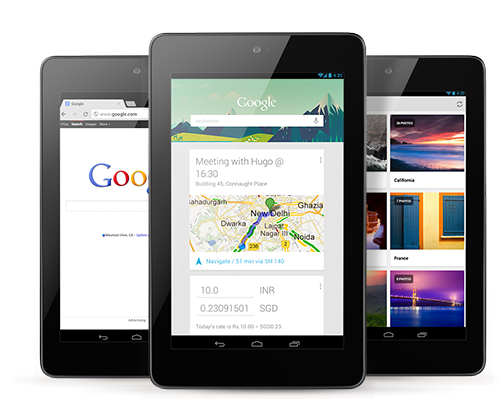
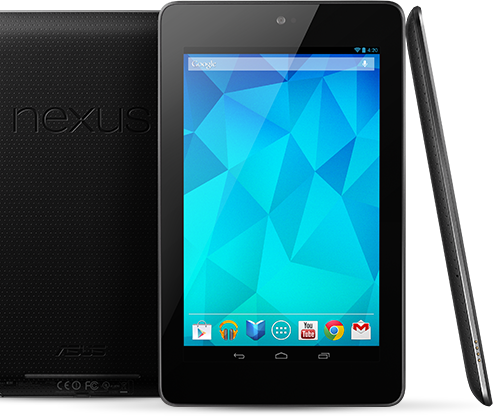
    good news for nexus lovers!!!!google nexus 7 second generation coming with a bang in India.the second generation nexus 6 has already been listed in coming soon list in google Indian nexus page “Sign up today and we'll give you a heads up when you can get your new Google Nexus 7, on Google Play or at a retailer near you.” All you need to do is enter your email ID and you will be notified when the new Nexus 7 will be made available in India and hopefully at what price too. Those interested in receiving updates about the Nexus 7’s India launch can sign up on Google‘s India Nexus page.To start with, the 7-inch display now has a 1920x1200 pixel resolution giving it a pixel density of 323ppi. The device comes in 16GB and 32GB storage variants, but sadly, there is no storage expansion option available. The Nexus 7 now has a 5MP rear facing camera and a 1.2MP front facing camera for hangouts.


    Under the hood, the Nexus 7 has a Qualcomm Snapdragon S4 Pro quad-core 1.5 GHz Krait processor, coupled with Adreno 320 GPU and 2GB of RAM. The battery capacity of the tablet hasn’t been revealed but Google claims 9 hours of HD video playback and 10 hours of web browsing on the tablet. The new Nexus 7 runs on the latest Android 4.3 Jelly Bean straight out-of-the-box. If you are one who enjoys gaming on your tablet, then you are in luck as the device supports OpenGL ES 3.0.The Nexus 7 will be available in three variants. The 16GB Wi-Fi only is priced at $229 (Rs. 13,600 approx.), the 32GB Wi-Fi only model is priced at $269 (Rs. 16,000 approx.) and the 32GB 4G-LTE version will cost $349 (Rs. 20,700 approx.).
    nexus 7
    nexus 7 gaming

    tags:nexus 7,free nexus seven,cheap nexus seven.nexus in india,india nexus price


    Tuesday, 30 July 2013

    Nokia Asha 501 – complete guide


    Nokia Asha 501 –

    Presenting the New Nokia Asha 501 launched by NOKIA. It’s a Amazing features phone you Check Out Nokia Asha 501 Price, Nokia Asha 501 features & Nokia Asha 501 Specifications.
    The Smartphone runs on the Latest Revamped  Operating System with Nokia Asha 501 will be available both in single and Dual SIM variants
    Nokia Asha 501  3.2MP Camera on the back with LED flashes for photos and Other Specifications like 4GB of internal storageor, or 1,200mAh battery which gives a standby time of up to 48 days.

     Features of Nokia Asha 501 –

    • Powered by RevampedOperating System
    • Dual Camera Smartphone Enabled
    • Dual SIM
    • Stylish Design
    • FM Available
    • High Speed best Connectivity Options
    • Powerful Battery Life
    • Social Networking Services

    Tags: NOKIANokia Asha 501Nokia Asha 501 FeaturesNokia Asha 501 ImagesNokia Asha 501 Phones,Nokia Asha 501 PriceNokia Asha 501 Specifications


    © 2014 . All rights resevered.